

A faster way to screenshot on Mac. Capture. ⏎. Done. Built for macOS 26. Launching soon on the Mac App Store 🧊
Joined October 2026
- Tweets135
- Following71
- Followers25
- Likes134





Pinned Tweet
Need a number from one window while you type in another?
Pin the capture. It floats above every window, lets your clicks pass around it, and ⌘C copies it back out. Esc and it's gone.
How do you do it today, flip between windows or a sticky note?

1
12
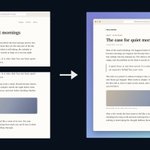
Two screenshots of the same page usually share a strip in the middle. When you combine them, a Join seamlessly chip sits on that seam: it removes the part both captures show and closes the gap, so you end up with one clean page. What do you usually stitch together?

1
5
The Mac beta is open if you want to try it: frostshot.app/beta

Auto-blur is off until you turn it on. Then every capture comes out with emails, phone numbers, card numbers, API keys and server IPs already blurred, and the rest stays readable. What do you always check before sharing a screenshot?

1
12
The Mac beta is open if you want to try it: frostshot.app/beta
2
Seven accent colors in Settings. One of them just follows the color you picked in macOS.
Change it and the Copy button, sliders and rings switch right away, even in windows that are already open.
Which one are you picking?

1
1
132
The Mac beta is open if you want to pick yours: frostshot.app/beta
2
Found something you'll need in an hour, just not right now?
Press ⌥⏎ and the capture slips up into the notch. ⌥⇧S brings the strip back down whenever you want it. Nothing lands on your Desktop.
Where do your "for later" screenshots end up today?

1
7
Want it in your notch? The Mac beta is open: frostshot.app/beta
3
The Mac beta is open if you want to try pins: frostshot.app/beta

Code in a screenshot is code you end up retyping.
Text mode: select the lines, press Return, and they land on your clipboard as real text.
Works on code, error messages, slides, anything on screen.

1
4
The Mac beta is open if you want to try it: frostshot.app/beta
Copied a screenshot, then copied something else and lost it?
Option+Shift+H. Every capture you copied or closed in the last 7 days is still there.

1
1
22
If you want to try it, the Mac beta is open: frostshot.app/beta
1
Option+Shift+Space and the Ring opens right where your pointer is. Pick an action with 1 to 8, no trip to the menu bar.

1
6
The beta is open if you want it on your Mac: frostshot.app/beta
Took a screenshot you'll need later, just not right now?
Press Option+Return and it slips up into the notch. Option+Shift+S drops the strip back down whenever you want it.
No folder to tidy. No desktop full of files.

1
12
Want to try it on your Mac? The beta is open: frostshot.app/beta
3